> ## Documentation Index
> Fetch the complete documentation index at: https://revenueflo.com/docs/llms.txt
> Use this file to discover all available pages before exploring further.
# SwiftUI SDK
> Instructions to setup in-app offer paywall in iOS app **(SwiftUI)**
Before proceeding with this guide, create a free account on the [RevenueFlo Platform](https://app.revenueflo.com/) and set up your first project and offer campaign to manage dynamic offer paywall seamlessly.
## Requirements
Xcode 13.0+ and iOS 15.0+ or later.
## Installation
* Go to your RevenueFlo project dashboard.
* Select the **Settings** from sidebar.
* Select **SDK & Code Setup → SwiftUI** and **Download RevenueFlo-Info.plist**
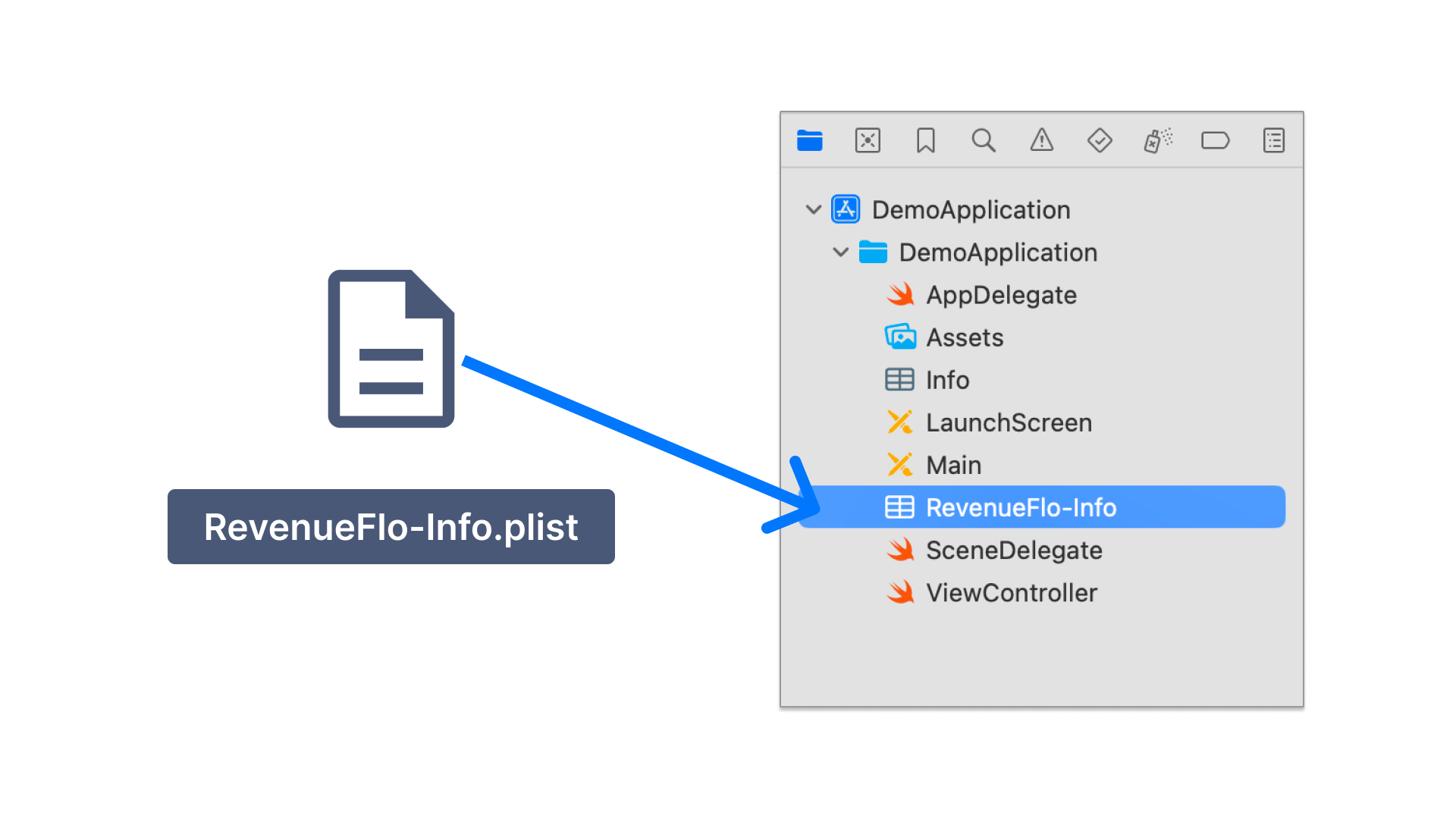
* Copy the **RevenueFlo-Info.plist** file you just downloaded into the root of your Xcode project and add it to all targets.
 * [Download RevenueFlo SDK](https://revenueflo.com/downloads/SDK/RevenueFlo.zip)
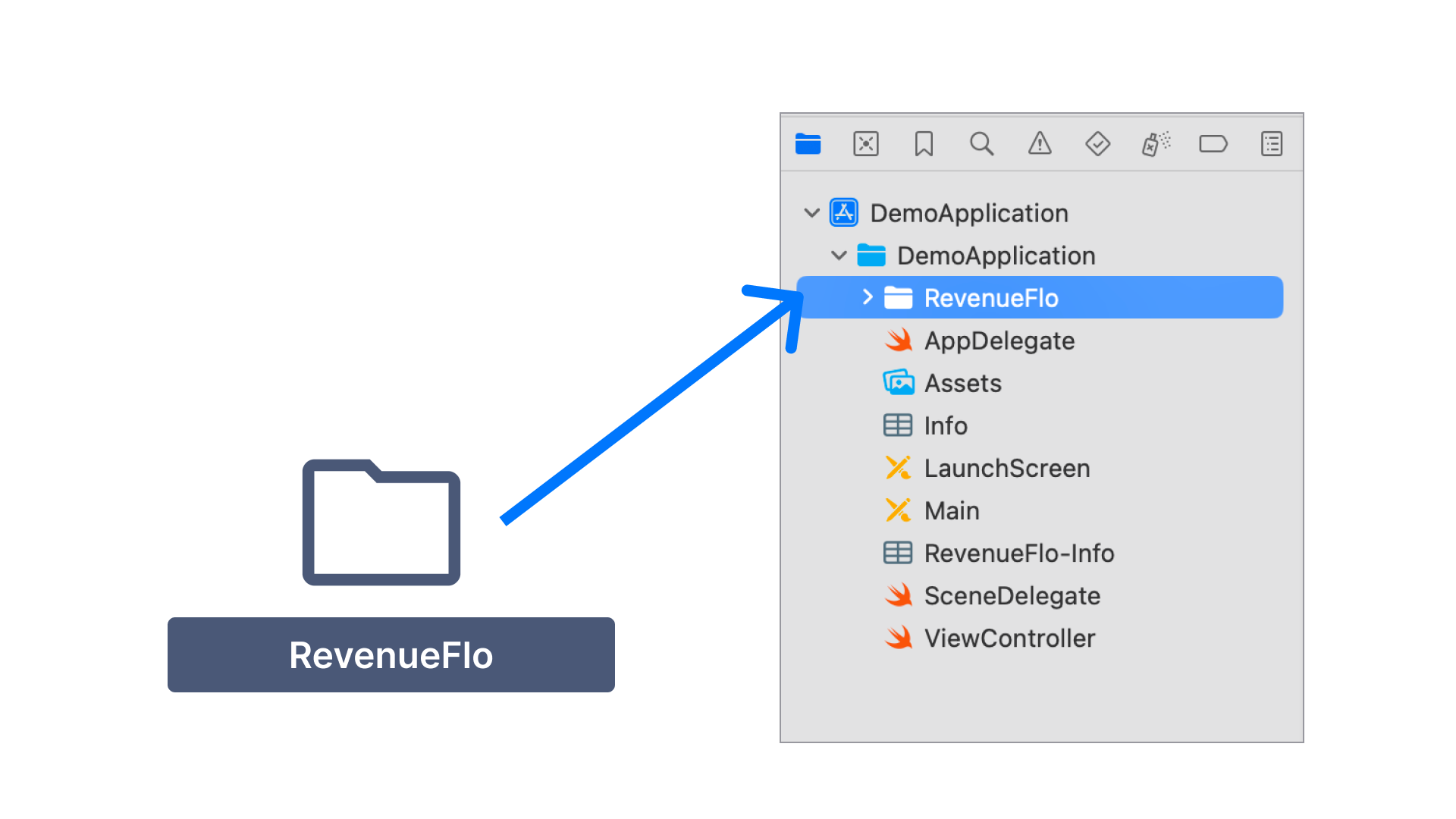
* Unzip & Copy the **RevenueFlo SDK** files you just downloaded into the root of your Xcode project and add it to all targets.
* [Download RevenueFlo SDK](https://revenueflo.com/downloads/SDK/RevenueFlo.zip)
* Unzip & Copy the **RevenueFlo SDK** files you just downloaded into the root of your Xcode project and add it to all targets.
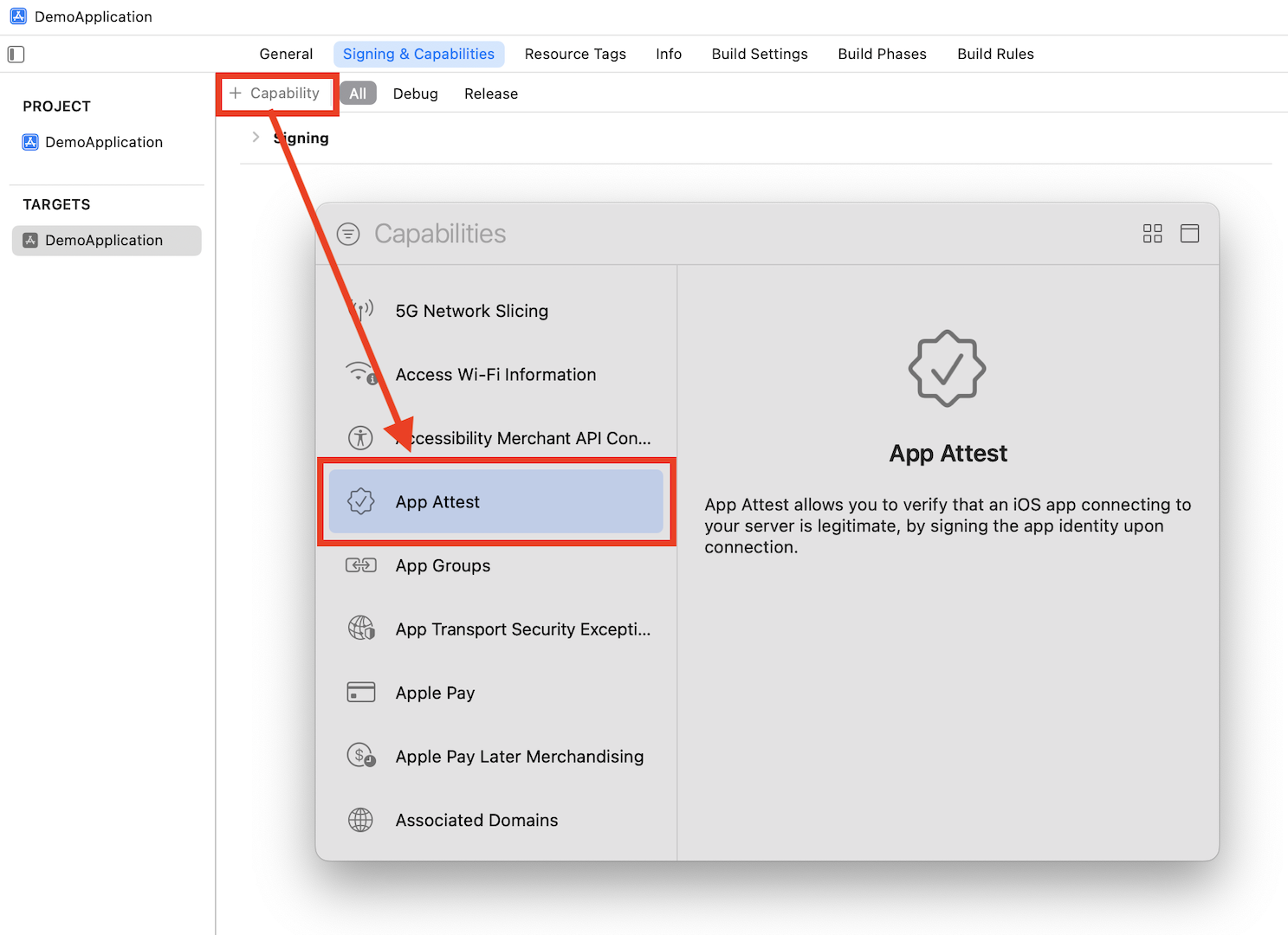
 First, you need to configure the Xcode project so that the SDK can use **Apple's App Attest API** to ensure that requests sent from your app come from legitimate instances of your app.
1. Add the App Attest capability for your app target.
First, you need to configure the Xcode project so that the SDK can use **Apple's App Attest API** to ensure that requests sent from your app come from legitimate instances of your app.
1. Add the App Attest capability for your app target.
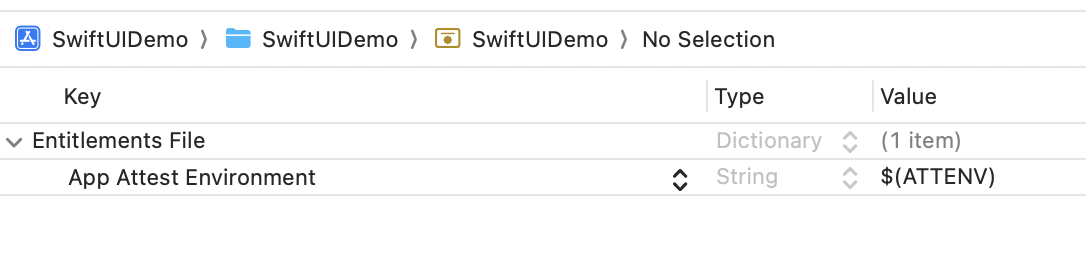
 2. Open the **.entitlements** file in your Xcode project and set the App Attest Environment value to `$(ATTENV)`
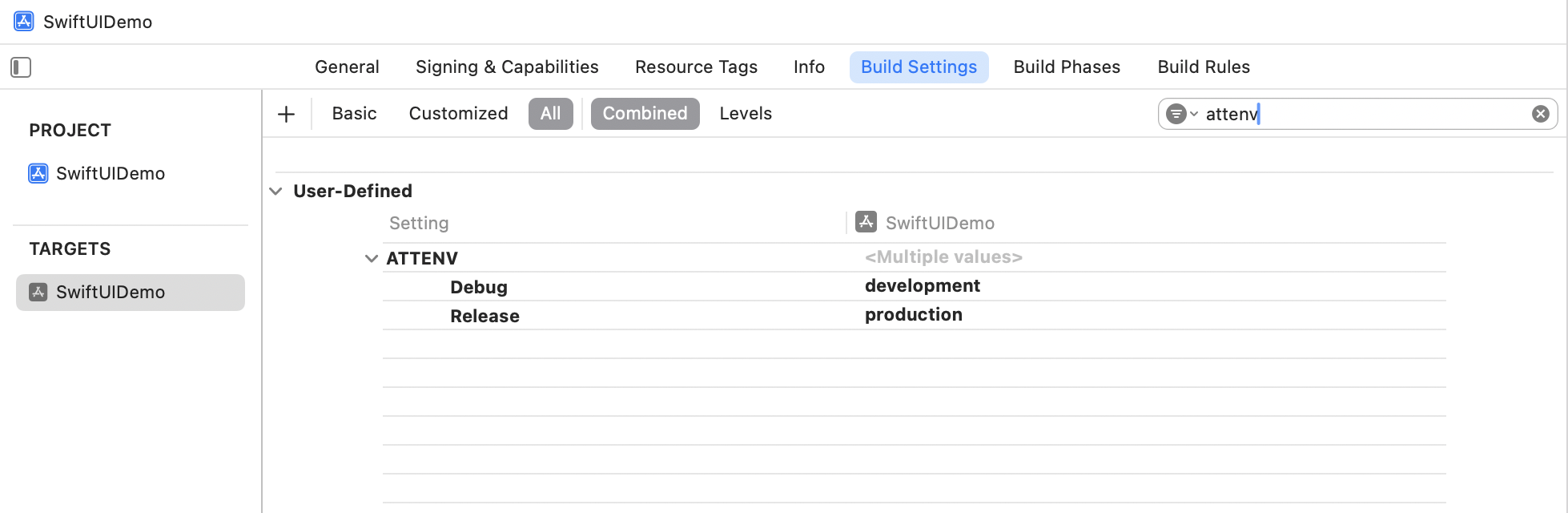
 3. In Xcode's Target Build Settings, create a user-defined setting named `ATTENV` and set its value to `production` for Release and `development` for Debug.
 ## Import the SDK Code
For SDK initialization, you can implement the **App** `init` method:
```swift SwiftUI icon="swift" theme={null}
import SwiftUI
@main
struct SwiftUIDemoApp: App {
// Add this method
init() {
// Configure RevenueFlo
RevenueFlo.configure()
}
var body: some Scene {
WindowGroup {
ContentView()
.preferredColorScheme(.light)
}
}
}
```
## Present an In-app Offer
In your **ContentView**, call the `presentOffer()` method to seamlessly present an exclusive offer to your users. Ensure to configure the offer details in the campaign dashboard before invoking.
```swift SwiftUI icon="swift" theme={null}
struct ContentView: View {
@StateObject private var revenueFloDelegate = RevenueFloDelegateHandler()
var body: some View {
// Setup your UI
VStack {
Image(systemName: "gift")
.imageScale(.large)
.foregroundStyle(.tint)
Text("RevenueFlo Demo!")
.onAppear {
// Call the SDK method to seamlessly present an exclusive offer from the Revenueflo.
RevenueFlo.shared.showOffer(
delay: 5, delegate: revenueFloDelegate)
}
Button("Show Offer") {
// RevenueFlo.shared.showOffer()
}
}
.padding()
}
}
class RevenueFloDelegateHandler: NSObject, RevenueFloActionDelegate,
ObservableObject
{
func offerDidPresent(_ offer: String) {
print("Offer presented: \(offer)")
}
func offerDidClose(_ offer: String) {
print("Offer closed: \(offer)")
}
func offerPrimaryButtonDidClick(_ offer: String) {
print("Primary button clicked for offer: \(offer)")
}
}
```
Make sure you have at least one campaign active in RevenueFlo and test on a real device to experience your offer paywall exactly as your users will see it.
## Example In-app Offer
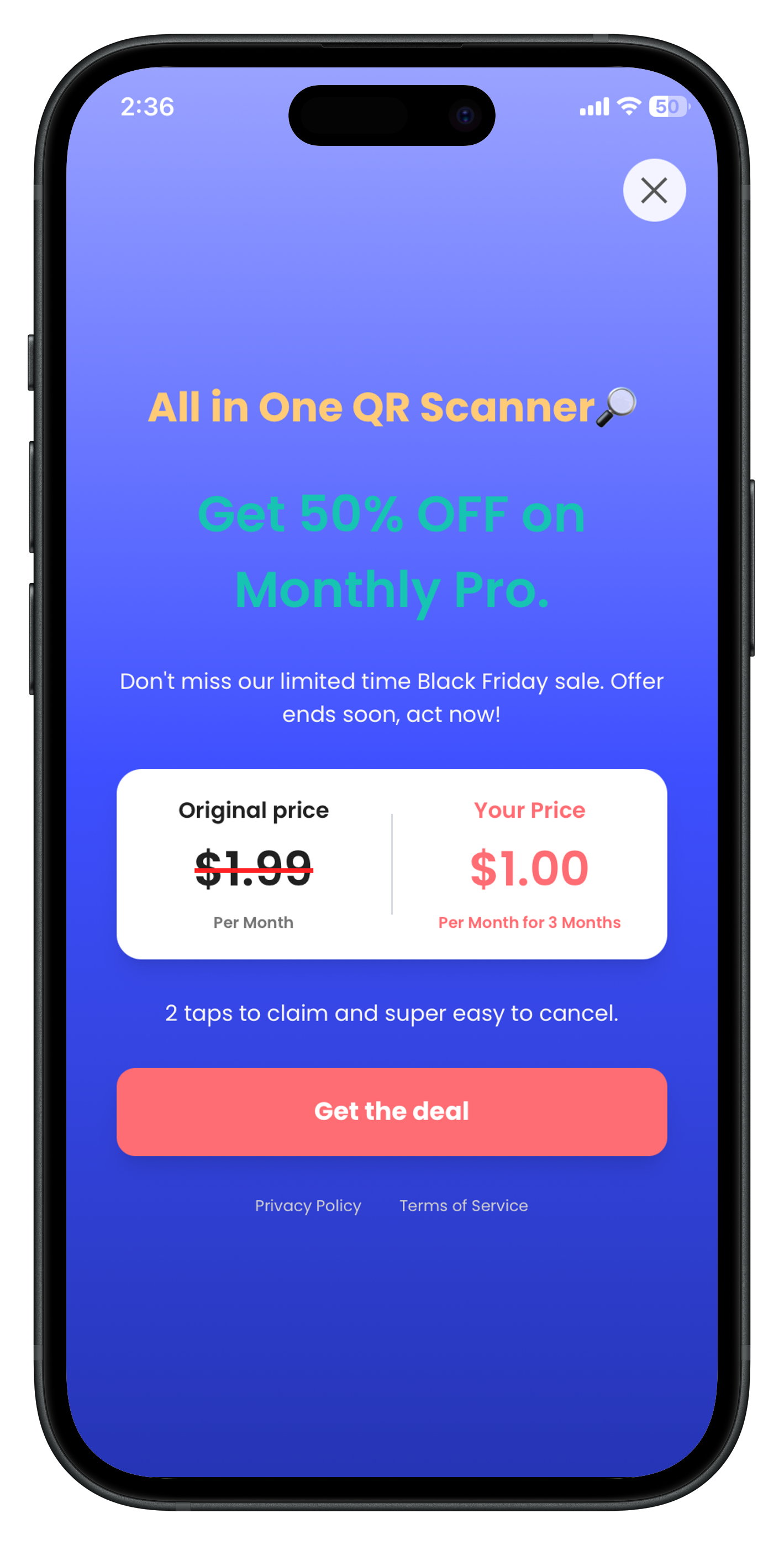
Here's the final presented offer paywall from **RevenueFlo**.
## Import the SDK Code
For SDK initialization, you can implement the **App** `init` method:
```swift SwiftUI icon="swift" theme={null}
import SwiftUI
@main
struct SwiftUIDemoApp: App {
// Add this method
init() {
// Configure RevenueFlo
RevenueFlo.configure()
}
var body: some Scene {
WindowGroup {
ContentView()
.preferredColorScheme(.light)
}
}
}
```
## Present an In-app Offer
In your **ContentView**, call the `presentOffer()` method to seamlessly present an exclusive offer to your users. Ensure to configure the offer details in the campaign dashboard before invoking.
```swift SwiftUI icon="swift" theme={null}
struct ContentView: View {
@StateObject private var revenueFloDelegate = RevenueFloDelegateHandler()
var body: some View {
// Setup your UI
VStack {
Image(systemName: "gift")
.imageScale(.large)
.foregroundStyle(.tint)
Text("RevenueFlo Demo!")
.onAppear {
// Call the SDK method to seamlessly present an exclusive offer from the Revenueflo.
RevenueFlo.shared.showOffer(
delay: 5, delegate: revenueFloDelegate)
}
Button("Show Offer") {
// RevenueFlo.shared.showOffer()
}
}
.padding()
}
}
class RevenueFloDelegateHandler: NSObject, RevenueFloActionDelegate,
ObservableObject
{
func offerDidPresent(_ offer: String) {
print("Offer presented: \(offer)")
}
func offerDidClose(_ offer: String) {
print("Offer closed: \(offer)")
}
func offerPrimaryButtonDidClick(_ offer: String) {
print("Primary button clicked for offer: \(offer)")
}
}
```
Make sure you have at least one campaign active in RevenueFlo and test on a real device to experience your offer paywall exactly as your users will see it.
## Example In-app Offer
Here's the final presented offer paywall from **RevenueFlo**.