Before proceeding with this guide, create a free account on the RevenueFlo Platform and set up your first project and offer campaign to manage dynamic offer paywall seamlessly.

Requirements

Xcode 13.0+ and iOS 15.0+ or later.

Installation

1

Download config file

  • Go to your RevenueFlo project dashboard.
  • Select the Settings from sidebar.
  • Select SDK & Code Setup → SwiftUI and Download RevenueFlo-Info.plist
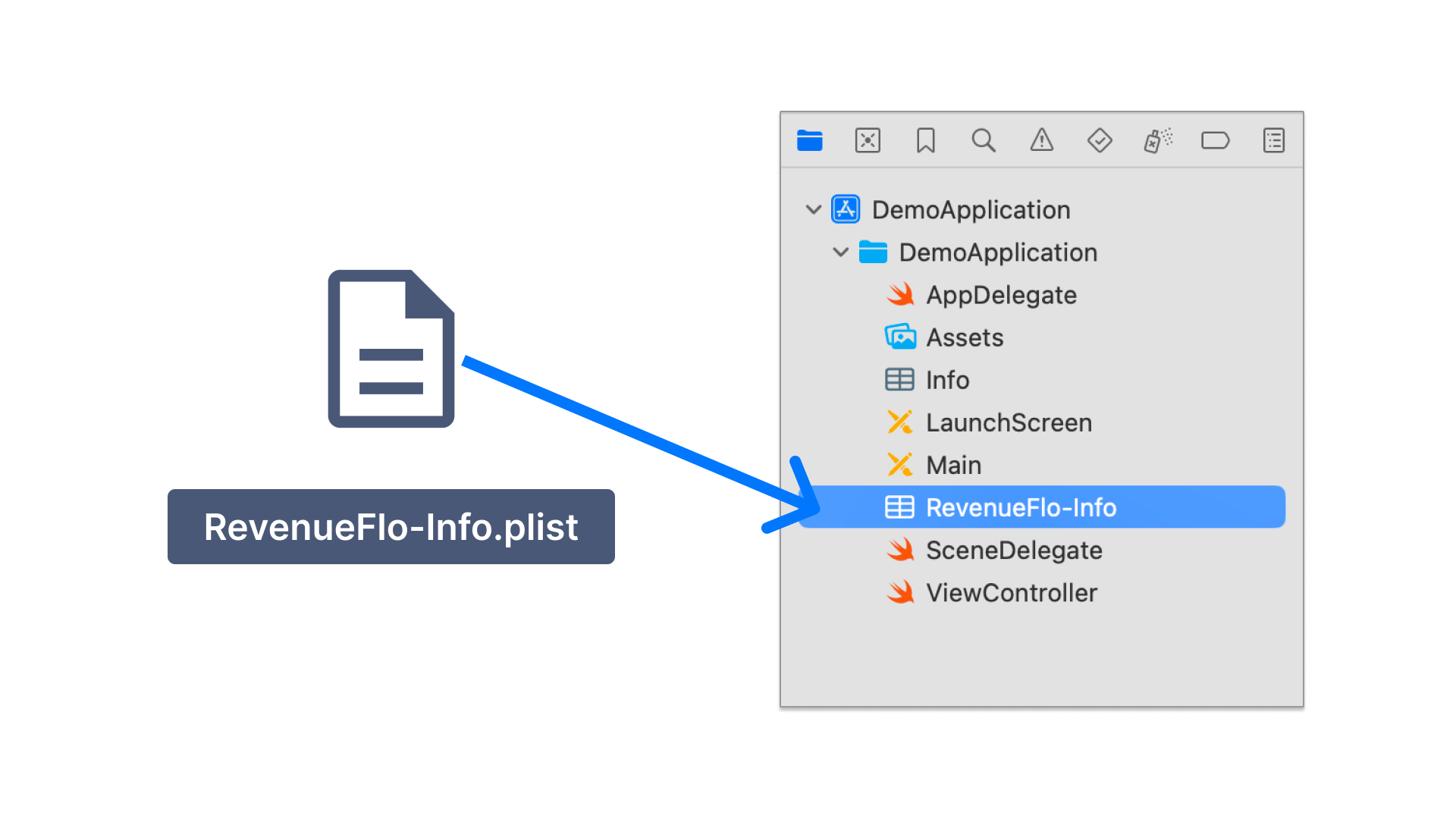
  • Copy the RevenueFlo-Info.plist file you just downloaded into the root of your Xcode project and add it to all targets. Copy the RevenueFlo-Info.plist to project
2

Add RevenueFlo SDK

  • Download RevenueFlo SDK
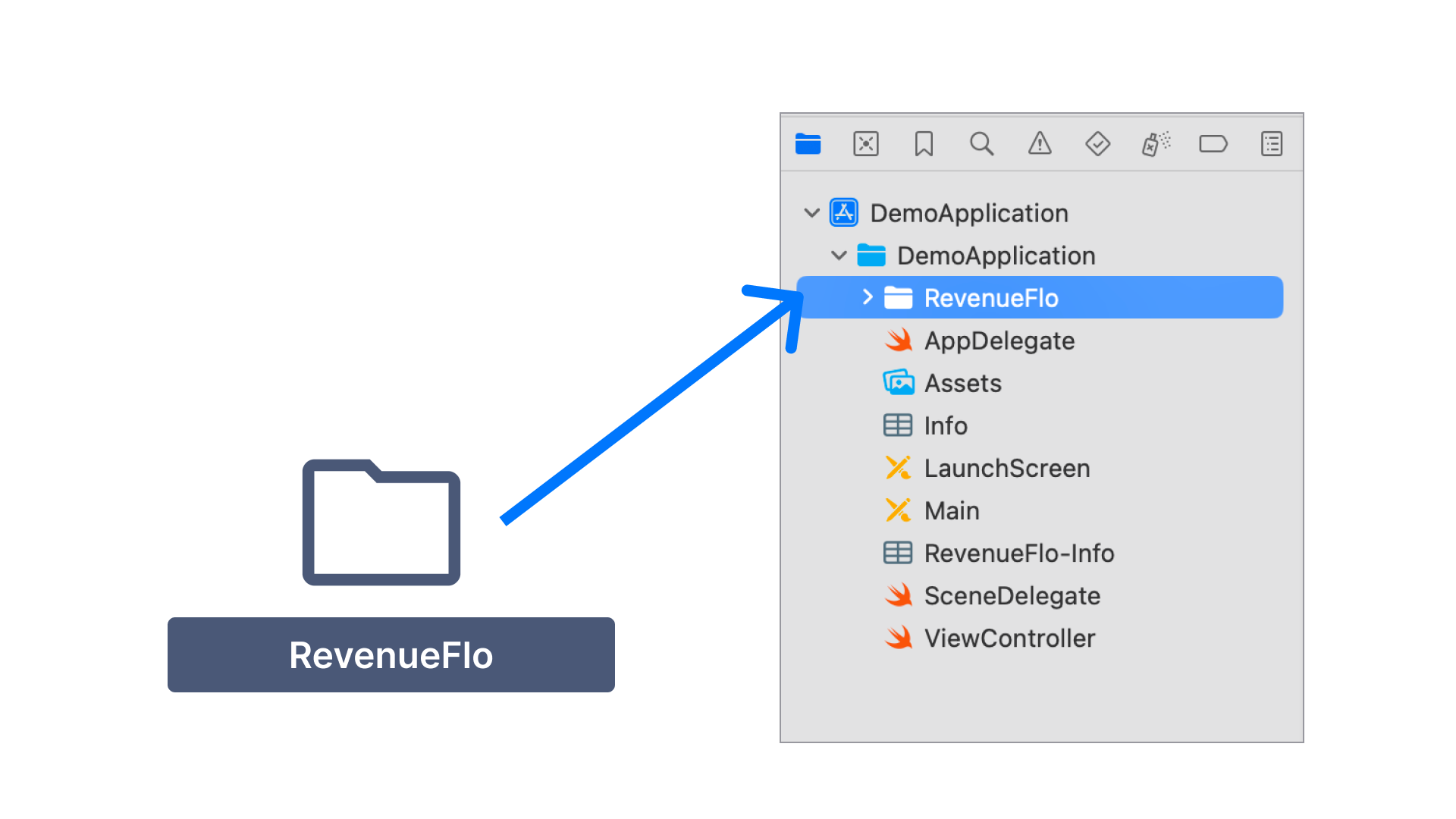
  • Unzip & Copy the RevenueFlo SDK files you just downloaded into the root of your Xcode project and add it to all targets. Copy the RevenueFlo SDK to project
3

Configure App Attest

First, you need to configure the Xcode project so that the SDK can use Apple’s App Attest API to ensure that requests sent from your app come from legitimate instances of your app.
  1. Add the App Attest capability for your app target.
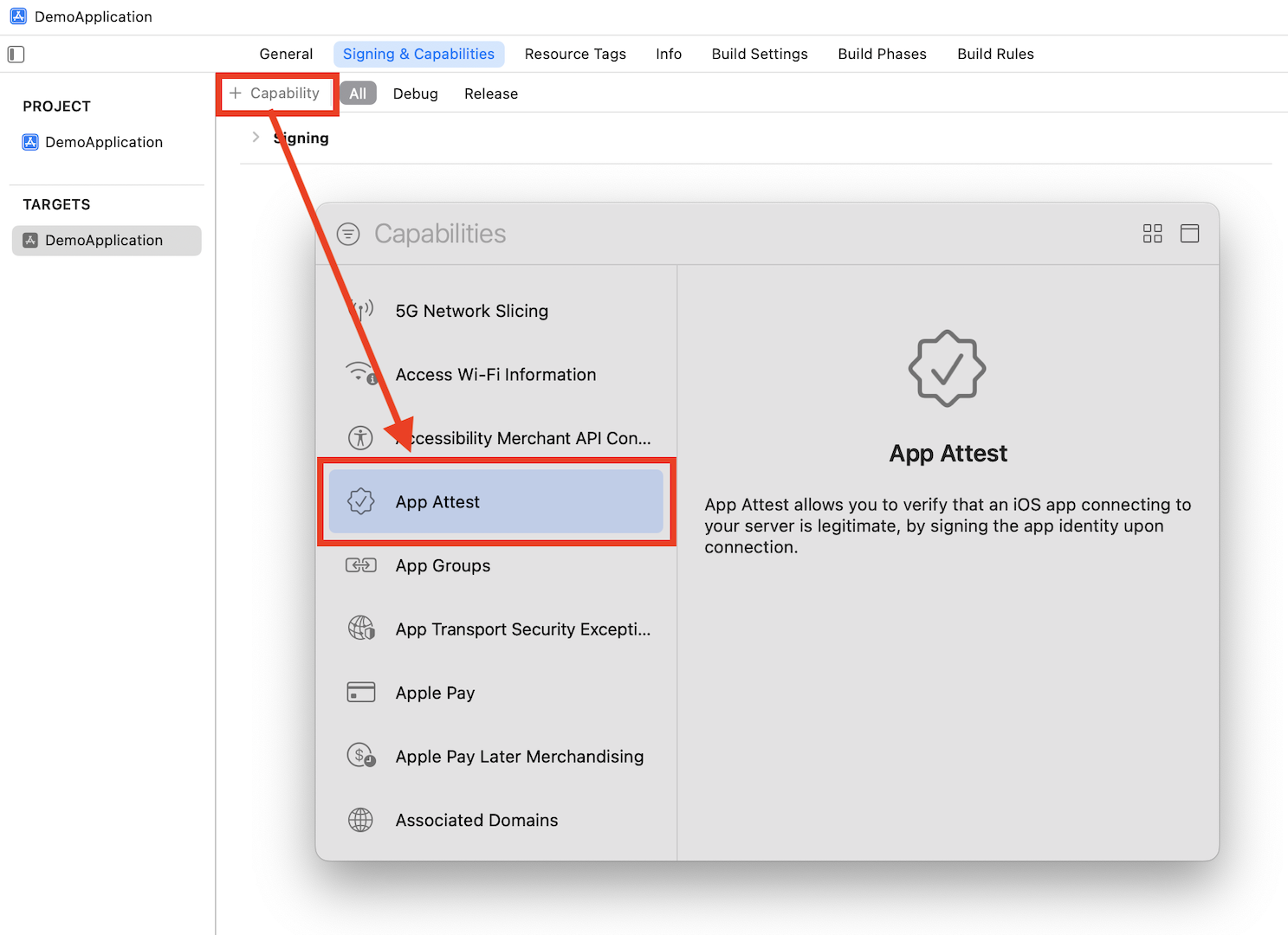
    Add the App Attest capability
  2. Open the .entitlements file in your Xcode project and set the App Attest Environment value to $(ATTENV)
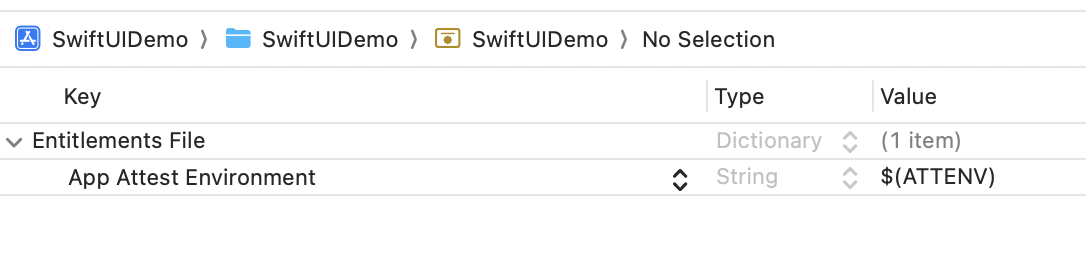
    Set the App Attest Environment value
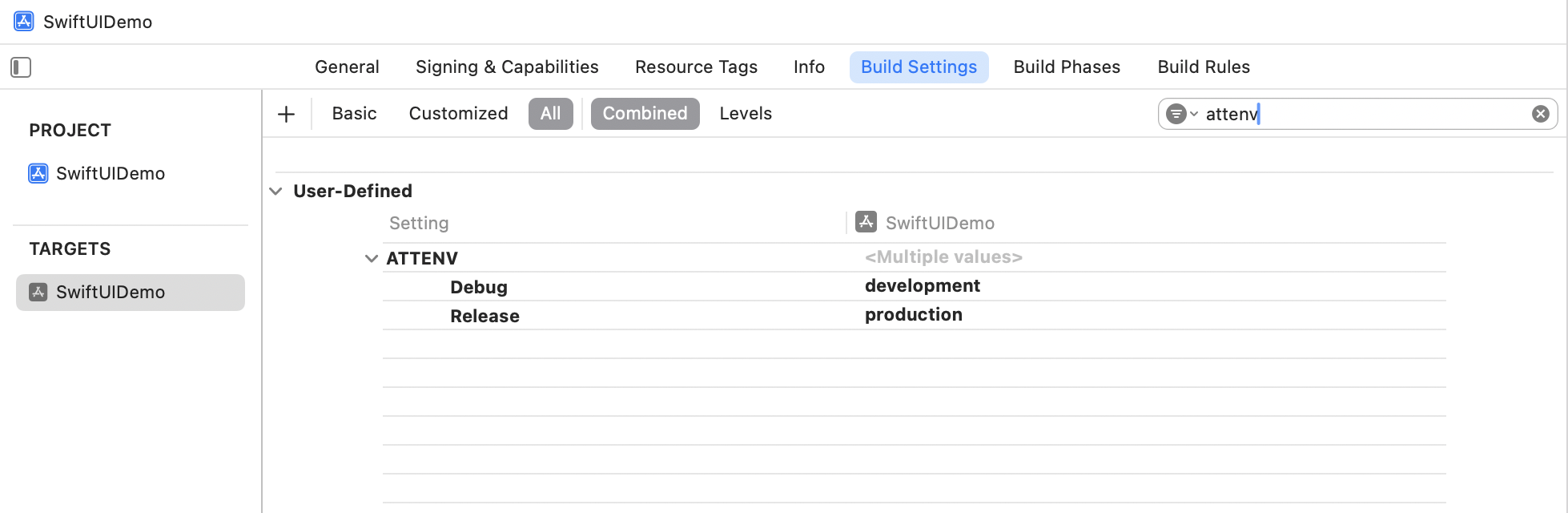
  3. In Xcode’s Target Build Settings, create a user-defined setting named ATTENV and set its value to production for Release and development for Debug.

    Create a user-defined setting named ATTENV

Import the SDK Code

For SDK initialization, you can implement the App init method:
SwiftUI
import SwiftUI

@main
struct SwiftUIDemoApp: App {
    
    // Add this method                                                          
    init() {
        // Configure RevenueFlo
        RevenueFlo.configure()
    }
    
    var body: some Scene {
        WindowGroup {
            ContentView()
                .preferredColorScheme(.light)
        }
    }
}

Present an In-app Offer

In your ContentView, call the presentOffer() method to seamlessly present an exclusive offer to your users. Ensure to configure the offer details in the campaign dashboard before invoking.
SwiftUI
struct ContentView: View {

    @StateObject private var revenueFloDelegate = RevenueFloDelegateHandler()

    var body: some View {
        
        // Setup your UI
        VStack {
            Image(systemName: "gift")
                .imageScale(.large)
                .foregroundStyle(.tint)
            Text("RevenueFlo Demo!")

                .onAppear {
                    // Call the SDK method to seamlessly present an exclusive offer from the Revenueflo.
                    RevenueFlo.shared.showOffer(
                        delay: 5, delegate: revenueFloDelegate)
                }

            Button("Show Offer") {
                // RevenueFlo.shared.showOffer()
            }
        }
        .padding()
    }
}

class RevenueFloDelegateHandler: NSObject, RevenueFloActionDelegate,
    ObservableObject
{
    func offerDidPresent(_ offer: String) {
        print("Offer presented: \(offer)")
    }

    func offerDidClose(_ offer: String) {
        print("Offer closed: \(offer)")
    }

    func offerPrimaryButtonDidClick(_ offer: String) {
        print("Primary button clicked for offer: \(offer)")
    }
}
Make sure you have at least one campaign active in RevenueFlo and test on a real device to experience your offer paywall exactly as your users will see it.

Example In-app Offer

Here’s the final presented offer paywall from RevenueFlo. In-app Discount Paywall